







 English
 Русский
 简体中文
简体中文 한국어
한국어 Tiếng Việt
 Türkçe
 Français
 Deutsch
 Español
 Polski
 繁體中文
繁體中文 日本語
日本語 العربية
 Português (Brasil)
FPS Guide
By Amya · updated 2026-08-07
These optimizations represent roughly 40% of my full tuning process but are the safest steps and can deliver noticeable performance improvements.
Step 1: Reset Drivers
-
Download Latest Driver:
- Find your driver here: NVIDIA Driver Download.
-
Uninstall Display Driver:
- Use Display Driver Uninstaller (DDU) to remove your current display driver.
-
Restart & Reinstall:
- After restarting, install the previously downloaded driver.
-
Reinstall Conqueror’s Blade:
- For new seasons, it’s recommended to reinstall Conqueror’s Blade to clear out old files.
Step 2: NVIDIA GPU Settings (IMPORTANT)
-
Control Panel Tweaks:
- Open NVIDIA Control Panel > Manage 3D Settings > Program Settings > Add > locate proven_ground_client.exe. (or any game you want to optimize)
Adjust the following:
- Power Management Mode: Prefer Maximum Performance
- Texture Filtering - Quality: High Performance
- Texture Filtering - Anisotropic: ON
- Threaded Optimization: ON
- Vertical Sync: Off
- Virtual Reality Pre-rendered Frames: 1
- Ambient Occlusion: Off
- Anti-Aliasing: Off (let the game handle it)
- Background Max Frame Rate: 20 FPS
- Nvidia Boost: Yes+Boost
- Max Frame Rate: Match your screen’s refresh rate or lower it to reduce stutters.
- Open NVIDIA Control Panel > Manage 3D Settings > Program Settings > Add > locate proven_ground_client.exe. (or any game you want to optimize)
Adjust the following:
-
Resolution Issues:
- If you can’t see the game or screen size is off/you have blackbars
adjust it under Display > desktop size and position:
- Full-Screen
- Perform scaling on GPU & override the scaling mode
- Check your refresh rate under Display > Change resolution:
- Sometimes your highest refresh rate is not available in FULL HD, so scroll down and look for normal “PC” resolution and check for better refresh rate
- Use NVIDIA color settings and select highest color depth / RGB / Full range
- If you can’t see the game or screen size is off/you have blackbars
adjust it under Display > desktop size and position:
-
Bonus (personal preference): Display > Desktop Color Settings:
- Adjust Digital Vibrance to 80% for richer colors.
- Contrast: Set it to 70% .
- turn down gamma at 0.95-1.00 / brightness 45%-50%
Step 3: WinDebloater
-
Download & Run:
- Get it from Windows10Debloater GitHub.
- Download the .zip file on the main page of the GitHub and extract the .zip file to your desired location
- Right-click the PowerShell file that you’d like to run and click on “Run With PowerShell”
- This will allow the script to run without having to do the above steps but Powershell will ask if you’re sure you want to run this script. Remember this script NEEDS to be run as admin in order to function properly.
-
Actions to Take:
- Remove Bloatware
- Disable Cortana (useless and use ram/cpu)
- Uninstall OneDrive (if you dont use it)
- Disable Telemetry
- Remove Bloatware Regkeys
- Lot’s of others options that you may or may not turn off as your liking
Step 4: Windows Optimizations
-
System Performance Settings:
- Right-click This PC > Properties > Advanced System Settings > Performance > Settings.
- Select Adjust for best performance but re-enable “Smooth edges of screen fonts.” Be cautious, this may affect some animations you like.
-
Windows Settings:
- Privacy and security: Disable everything except microphone and camera.
- Gaming: Turn off Game Bar and enable Game Mode.
-
Enable Ultimate Performance Mode:
- Open Command Prompt as Administrator.
- Run: powercfg -duplicatescheme e9a42b02-d5df-448d-aa00-03f14749eb61
- Open Power Options → Ultimate Performance should appear → select it.
- Portable PCs may skip this step as it increases power consumption & heat.
Bill2 Process Manager
Overview: Bill2 Process Manager helps you manage running processes and optimize system performance by setting priorities.
Setup and Use:
-
Download and Install:
- Visit the Bill2 Process Manager website and download the latest version.
- Run the installer and follow the on-screen instructions.
-
Open Bill2 Process Manager:
- Launch the application after installation.
- The main interface displays all active processes along with CPU usage.
-
Process Management:
- Right-click a process, select Set Priority, and choose High, Above Normal, Normal, etc.
- Allocating higher priority to important applications like games ensures smoother performance.
-
Setting Rules:
- Right-click a process, select Add Rule, and set your desired priority and behavior.
- These rules automatically apply every time the process starts, maintaining consistent performance without manual adjustments.
Intelligent Standby List Cleaner
Overview: Intelligent Standby List Cleaner (ISLC) optimizes the memory management system, specifically the standby list to enhance game performance.
Setup and Use:
-
Download and Install:
- Download ISLC from the official Wagnardsoft page.
- Extract the downloaded ZIP file and run the executable.
-
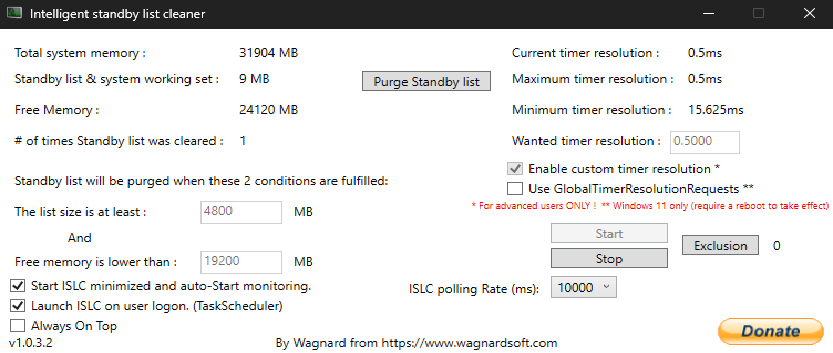
Configuration for 32GB RAM, do half the MB if 16 GB and a quarter of it if 8 GB:
-
Running ISLC:
- Click the Start button to activate ISLC.
- Enable the Auto Start with Windows option
-
Monitoring Performance:
- ISLC provides real-time statistics of memory usage and standby list status.
- Use this information to adjust settings as needed.
Process Lasso
Overview: Process Lasso optimizes the CPU usage of running processes, improving performance and responsiveness.
Setup and Use:
-
Download and Install:
- Download Process Lasso from the official website.
- Install the software by following the prompts.
-
Open Process Lasso:
- Launch Process Lasso after installation.
-
Managing Processes:
- The main interface shows a list of running processes and their CPU usage.
- To set a process to have a specific priority:
- Right-click the process.
- Choose Priority Class > select your desired priority (e.g., High, Above Normal).
-
ProBalance Feature:
- ProBalance automatically manages processes to optimize CPU usage.
- Ensure it’s enabled by checking the ProBalance option in the settings.
-
Create Rules:
- You can set up rules for processes (similar to Bill2):
- Right-click the process > Add Rule > configure settings as desired.
- You can set up rules for processes (similar to Bill2):
-
Startup Configuration:
- Enable Run at Windows Startup.
Step 5: Temporary Files Cleanup
-
Clear Temp Files: Repeat this every two weeks.
- Press Windows Key + R, type temp, and delete everything.
- Repeat the process with %temp% and prefetch folders.
- Empty the Recycle Bin.
-
Game File Optimization:
- Right-click on proven_ground_client.exe (located in your game directory) > Properties > Compatibility tab > Tick Disable full-screen optimizations.
-
Desktop Optimization: Right-click on desktop > View > Uncheck Show desktop icons while playing.
-
Startup Optimization:
- Open Task Manager > Startup tab > Disable unnecessary startup programs.
Step 6: Additional Optimizations
-
Disable Hyper-Threading (can help and sometimes can make worst, test both):
- Follow this guide to disable Hyper-Threading and SMT.
-
Disable Unnecessary Hardware:
- Disable unused devices like extra USB ports, PCI bridges, or network cards (be sure you know what you’re disabling).
-
Disable Power Saving Options:
- Right-click on devices like network cards, keyboards, and USB controllers in Device Manager > Properties > Power Management tab > Uncheck Allow the computer to turn off this device to save power.
Step 7: Game-Specific Settings (Conqueror’s Blade)
-
Graphics Settings:
- Display Settings:
- Resolution: Fullscreen (preferably) or borderless
- Frame Rate: Auto
- Vertical Sync (if your screen is 60hz turn it ON): Off
- Display Settings:
-
Graphics Settings:
- Particles: Low (Turn off for TW)
- Decal Quality: Low
- Post Processing Effects: Low
- Highlight Quality: ON
- Shadows: Off (recommended) / Low
- Textures: High
- Terrain Detail: Normal
- Vegetation: Low
- Anisotropic Filter: Off
- Anti-Aliasing: Off
- Ambient Occlusion: Off
- Physics Simulation: Off
- Character Detail: Low/Highest (preference)
- Scene Detail: Low
- Light Effects: Off
- Hero Outline: On
- Clouds: Off
- Planar Reflection: Off
- Unique Heads: Off
- Hide corpses: Yes
- Show Unit Flag: Off
- Ragdoll System: Off
-
Task Manager Priority (Can be automated thru Process Lasso):
- After launching the game, press ALT + TAB to minimize > Open Task Manager > Details tab > Find proven_ground_client.exe > Set Priority to High.
-
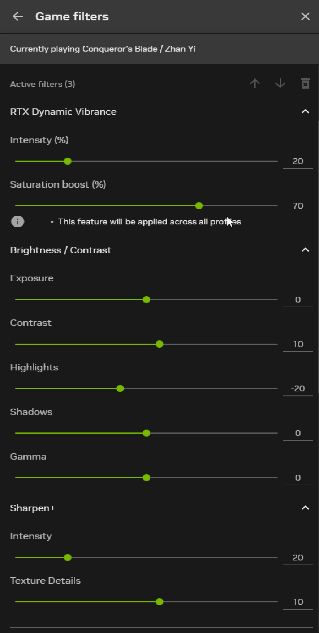
NVIDIA Overlay - Game Filters:
Replace RTX Vibrance by “color” if you don’t have it, put tint off, and vibrance at 70% in it.
Hope this helps!